Bandwidth Monitoring
UPDATE: August 2017
Comcast has apparently decided that 1TB is the bandwidth cap these days, although I haven't heard anything official from my local office. I routinely use around 600 GB or so, maxing at 960 GB one month when I got a new machine and off-site backups had to be transferred and synced, but other than that I'm decently below the cap, so tracking this has become a bit less of an immediate concern for me.
Also, my TP-Link router failed. I decided to replace it with a (notably more expensive) Synology RT2600ac, which also replaced my AirPort Extreme, and a 16 port ZyXEL GS1900-16 managed 16 port gigabit ethernet switch, which replaced the two other unmanaged gigabit switches and other ethernet ports I was using on the AirPort Extreme.
The Synology has greater wifi range than the AirPort Extreme, and a desktop-like web interface that is easy to manage. Most importantly for the purposes of this post, it also supports per-machine bandwidth monitoring out of the box, and can automatically generate pretty charts and graphs showing which machines used the most bandwidth. It also shows the most popular "applications" that were connected to, like YouTube or Google or IMAP (although half of it is just "SSL"), and a map of where the connections were made across the globe.
There were some bugs where it would report wildly high usage for one of my machines, but there are fairly frequent firmware updates that have since resolved those issues, and the amount reported is now very close to what Comcast shows me. Overall I've been pretty happy with it.
ORIGINAL POST
Comcast has started expanding its 300 GB/month bandwidth caps to other areas of the country. With $10 per 50 GB over, or paying $35 to get back to the unlimited bandwidth you had before, this seems like something that could get expensive fast -- for me, it would be over $100/month just for internet alone, and I own my modem and don't have a cable TV or phone package.
Luckily for me, this isn't happening in my area (...yet), but I wanted to figure out just how much bandwidth I was using before it was something I did have to worry about. Comcast provides a bandwidth meter through their accounts and snapshot pages, but we have four computers, two iPhones, an iPad, two Canary security cameras, two Apple TVs, the Magic Mirror, various game consoles, and a few other internet-connected devices around the house. On top of that, I wanted to keep using my Apple Airport Extreme Base Station, along with the two other gigabit switches and Airport Express I have hooked up to my network. I wanted to be able to monitor bandwidth on a per-device basis, as well as a per-app basis.
I found two complementary means of handling this, one at the router, and the other at the computer.
At the Computer: Little Snitch
My primary machine is a Mac, so I figured the most likely place for a rogue process would be there. I have a few known high-bandwidth apps, like BackBlaze for offsite backups, Apple Photos for syncing photos between devices, plus the usual web browsing and downloads. If there was an app that would be using too much bandwidth, it would be here.
I found references to applications that could read information from the router via SNMP, but the latest iterations of the Airport Extreme Base Station no longer support this. Not that I expect it would have been hugely useful, as I think it would only have given me whole network information, and I wanted per-machine and per-app information. While you can enable SNMP on each Mac and probably on Windows machines to get machine-level monitoring for them, it wouldn't get me information for iPhones and other network devices.
After much searching, it looked like the best choice was going to be Little Snitch. I'd known about this app for years, but I wasn't paranoid about the apps I had installed to want to bother approving and denying individual connections. But Little Snitch also features a network monitor, so I decided to give it a go. To be honest, I'm rather surprised there isn't a simple per-app network monitor out there that is less imposing than something like this for less advanced users, especially on the Mac.
While you can disable Little Snitch's rules system and just allow all connections, I decided to keep it on. I still approved pretty much everything, though. But that's not why we're really here.
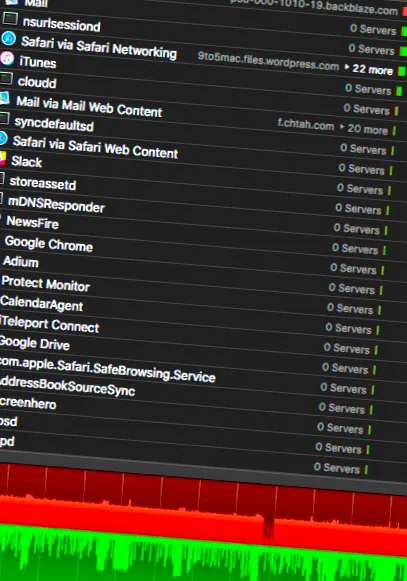
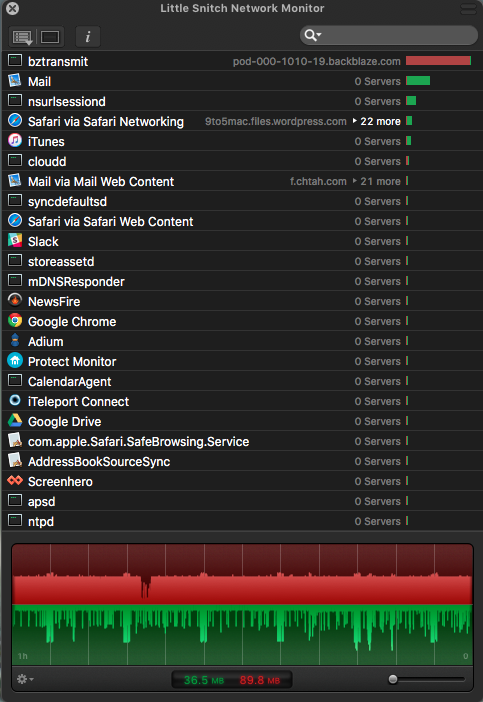
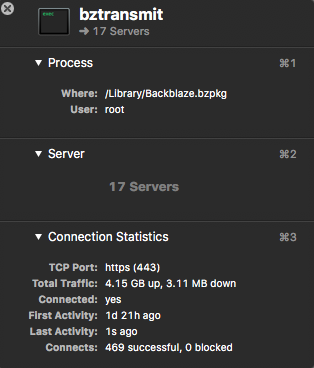
The network monitor is what we're really interested in. This keeps track of only WAN contacts -- it will not show any LAN connections at all. This makes it extremely useful for bandwidth monitoring. The first thing to do is sort the list by traffic amounts, which puts the highest-bandwidth applications up top. Here you can see that bztransmit (BackBlaze) does a fair bit of uploading (red bar), because it does constant continuous backups. I expected it to be one of my higher bandwidth processes, and the roughly 2 GB of data a day seems about right to me.
Double-clicking on a process opens an info window showing its total traffic and how long monitoring has been going on for. I think this persists until you restart the application, but I haven't had to reboot yet, so I'm not quite sure.
Next, selecting the entirety of the graph at the bottom (cmd-a) will show the upload (red) and download (green) of the selected processes, or all processes if none are selected. When zoomed all the way out, this shows an hour of data. In the last hour, this says I used 36.5 MB down and 89.9 MB up. At other heavier use times I've seen it being closer to 2 GB/hour, but that's not constant.
With this information, you can pretty easily figure out which tasks are using up all your bandwidth and deal with them as appropriate, either changing their settings to reduce their bandwidth usage or deleting them entirely.
I didn't look into Windows traffic monitoring solutions. I use my Windows machine for a subset of tasks, so it's not as important to monitor traffic there. I also didn't install Little Snitch on my other Macs as yet, and likely will only do so if the router-side analysis suggests that I should.
At the Router: Gargoyle
My router is an Apple Airport Extreme Base Station, with gigabit ethernet and 802.11ac wifi. I wanted to keep using it, especially for wifi. Unfortunately, there is effectively zero bandwidth monitoring support in the AXBS.
After a bit of googling I hit on Gargoyle, a router management tool based on DD-WRT but with an easier to use interface. For me, the big thing was that it provided a per-machine breakdown of bandwidth usage, complete with charts so that you can quickly find the biggest offenders. Even better, it stores a year's worth of data, which you can view in one month increments, or the days of the most recent month, or by minute on the most recent day. The main question was how to set it up on my network.
I decided to order a TP-LINK TL-WR1043ND router from Amazon. This router is supported by Gargoyle, and in fact they sell one with Gargoyle pre-loaded on their site. Installation was simple -- just plug it into my computer's ethernet port and upload the firmware through the router's own web interface at 192.168.0.1. After installation, I didn't really have to do anything other than log into 192.168.1.1 and set up a new admin password. Wifi is disabled by default, which is what I wanted -- I didn't even attach the antennas. All the other defaults are perfect for just monitoring bandwidth and passing through traffic, but you can go further and set up per-machine quotas, monitor web activity, dynamic DNS, port forwarding and DMZ, QoS, and more.
To make the Airport Extreme Base Station work with this, I opened Apple's Airport Utility, went to the AXBS's Network tab, and changed the Router Mode to Off (Bridge Mode). This effectively turns off the WAN port, DHCP server and NAT traversal. I unplugged the cable modem from the AXBS and connected it to the Internet port on the TP-LINK router. Another port from the AXBS and from my other two switches were then plugged into the TP-LINK.
After power-cycling the cable modem, everything worked as expected. The AXBS is now a gigabit switch and 802.11ac wifi access point. All traffic goes through the TP-LINK router and out to the internet. Gargoyle is able to monitor traffic based on the device's MAC address, and thus provides per-device information. This allows me to see exactly where my data is going.
The most useful place for monitoring bandwidth is Gargoyle's B/W Distribution page, from the Status menu. This provides both total bandwidth usage and charts showing the relative usage for each device. One day's worth of data showed that the main offenders are indeed my Mac (Ryoga-IV), as well as my iPad (Royga-Pad-2), on which we watch a lot of streaming video. Gargoyle automatically finds hostnames found for DHCP clients, and you can set them manually for machines with static IPs. I still have to track down what a few of these clients are.
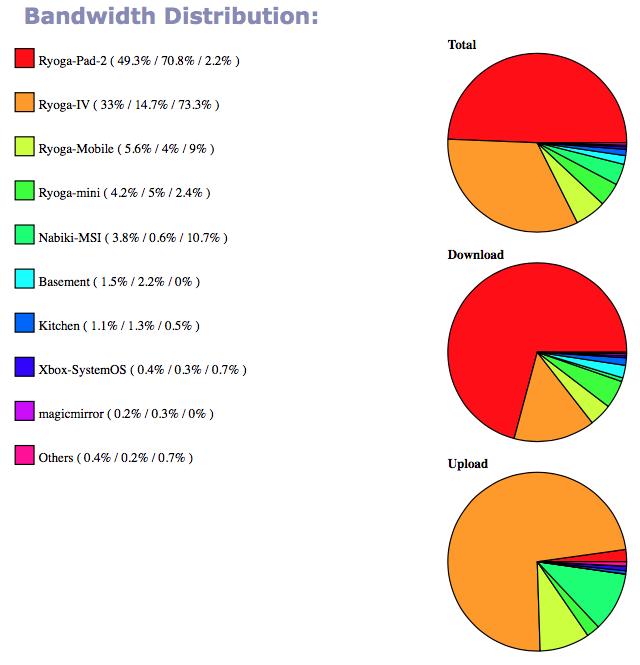
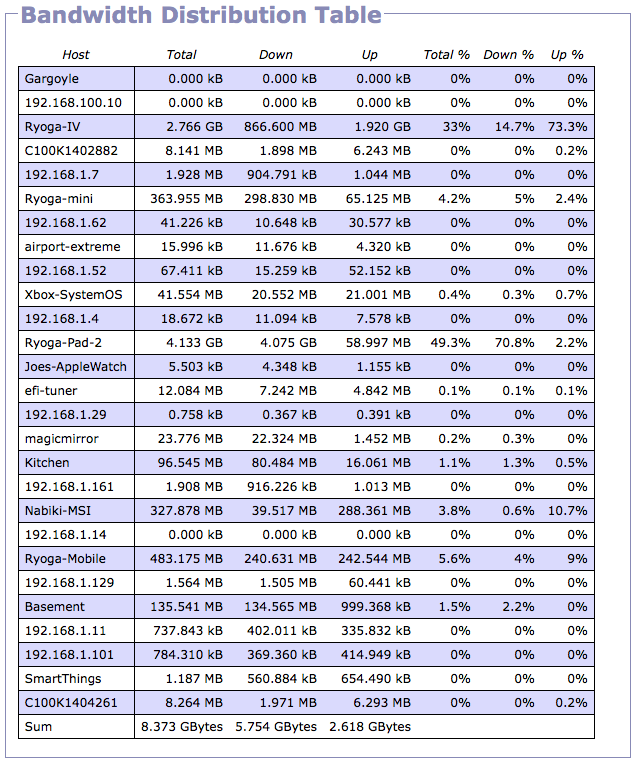
I actually think my two Canary units (likely the C100K hosts in the bandwidth table) were the primary culprit to my high bandwidth usage, as they stream encrypted high definition video to a server for processing, and in the most common configurations it does this pretty much continuously. Comcast's usage monitor would report nearly a terabyte of usage some months (although that was around the time Apple Photos came out, and 350 GB of photos were being uploaded to my iCloud Photo Library), but 650 GB was a pretty average use of late. Just before setting up Gargoyle I had recently switched Canary to Privacy mode when I'm at home, which completely disables the camera system and video stream. It means I can't do panic recording or viewing while the system thinks I'm at home, but it should significantly reduce the amount of bandwidth it uses.
Rant
I still think this whole thing is silly. Comcast's own services (like their own security camera) don't count towards the bandwidth cap, which sounds like a violation of net neutrality. Supposedly the average user only uses 40 GB of data a month in 2015, but that's because there are a lot of casual users who just check their email and likely use well below that amount. Couple that with the fact that today's high-bandwidth user is tomorrow's average user (40 GB of data wasn't exactly a small amount ten years ago; today, downloading an Xbox One or Playstation 4 game can easily be over 20 GB alone, not to mention the increase in streaming video usage like Netflix and Hulu), and limiting bandwidth for short-term corporate monetary gain is just going to limit the introduction of new high-bandwidth services in the future. The fact that I have literally zero other options at anywhere near cable modem speed and latency where I live (I can't even get DSL), my only option is to use Comcast or have unacceptably slow satellite or unacceptably expensive cellular internet. Maybe someday Google Fiber or Verizon FiOS will make it to the rest of the country, but until then I'm stuck with what I have.
James Elterman
Thanks for this article. I am considering Gargoyle and some other options. Your article described what I was hoping to learn about Gargoyle. I'm going to try it. Thanks!
Gary Kellogg
Hi Joe,
I found your article via Google and it describes almost exactly my very situation--especially the irksome, SNMP-crippled AXBS router and the Comcast limit in my area (1TB/mo).
I may be overthinking this or visualizing it wrong. You wrote: "I unplugged the cable modem from the AXBS and connected it to the Internet port on the TP-LINK router. Another port from the AXBS and from my other two switches were then plugged into the TP-LINK ... After power-cycling the cable modem, everything worked as expected. The AXBS is now a gigabit switch and 802.11ac wifi access point."
As I visualize where the cables are plugged, is your TP-Link not the gigabit switch with the AXBS being only an access point? (I just don't want to goof something up when I follow your instructions.
Thanks so much for the info.
Joe Angell
Luckily Comcast hasn't instituted the 1 TB/month caps here yet, but I'm managing not to exceed ~500 GB/month, so I'm hoping that I'll be OK when they eventually decide to do that.
The setup is like so: Cable modem to the TP-LINK router's WAN port, making the TP-LINK the gateway to the internet. Everything else plugs into the TP-LINK LAN ports, or plugs into a switch plugged into the TP-LINK. Wifi is handled entirely through the AXBS (the TP-LINK wifi is off). I don't use the WAN port on the AXBS; I simply ran an ethernet cable from one of the TP-LINK LAN ports to an AXBS LAN port. I could have plugged yet the switches into the AXBS, but I have computers plugged into its ports instead. I mean, you can plug the cable modem into the TP-LINK WAN, connect the TP-LINK and AXBS via their LAN ports, and then plug other switches into the LAN ports and not use the remaining TP-LINK LAN ports. Really as long as everything is connected to each other you should be good.
As I said, the AXBS is used for wifi; the TP-LINK's wifi is off. The TP-LINK is acting as the DHCP server as well, although you can probably use the AXBS for that.
Let me know if you have any other questions.
Gary Kellogg
Hi Joe,
Thanks for "unpacking" your procedure a little bit more. I always seem to get everything right except for one intractable problem when I configure networks. I then learn enough to solve the problem. And of course the troubleshooting never makes to the long term memory.
Cassie Sanders
I'm looking into this exact setup and I appreciated the walkthrough. I got a little bit confused about the exact order of the devices. Is it:
[Comcast router] > [T-LINK] > [Airport Base] > [Devices] or
[Comcast router] > [Airport Base] > [T-LINK] > [Devices]
Joe Angell
The sequence is:
Comcast router (modem) -> TP-LINK -> Airport -> Devices
The TP-Link must be between the modem and everything else. This is because the TP-LINK can only do bandwidth monitoring on the traffic that actually passes through it. If you put the Airport between the modem and the TP-LINK, then any traffic that passes through the Airport directly (say, if you're using the Airport for wifi, or have something plugged into its ethernet ports), the TP-LINK won't know about it and won't track it.
You can plug other things into the TP-LINK directly, or use the TP-LINK's wifi. In effect, the Airport is just another device.
I actually have something like this:
Modem -> TP-LINK -> "devices"
Where "devices" is:
- Airport Extreme Base Station (which handles wifi and has 3 other devices connected through ethernet)
- 8 port gigabit switch (which has 8 other devices plugged into it)
- 4 port gigabit switch
- Another device plugged directly into the TP-LINK's ethernet ports
The point is, all traffic goes through the TP-LINK before going to the cable modem, so that the TP-LINK can monitor it all.
Kirk Goodwin
Thanks for sharing this. I've just successfully added Gargoyle 1.9.2 on a TP-Link TL-WDR4300 and started monitoring. I've been between 950 and 1020 Gig a month after turning a lot of services off or down. Now I'll run them all and see what's eating the bandwidth.
Do you know if there is an easy way to rename the hostnames on the router?
Thanks again for routing this!
Joe Angell
I vaguely recall that you can do this, but I don't remember how now. My router died a few months ago and I decided to replace it with a Synology RT2600ac, which has its own built-in bandwidth monitoring (although it is notably more expensive than the TP-Link was). It also had some bugs with reporting bandwidth usage, but they do frequent firmware updates and seem to have been fixed that, and now it is pretty close to what my ISP reports.
Some Googling suggests you need to set up static IPs to provide custom[ hostnames with Gargoyle. The Synology router I have now requires you to set up host names on the machines themselves, and has no override at all.
Sorry I can't be of more help.
Mark Hobson
Great write-up. I feel that we are twinsies since I have Comcast bandwidth issues and am using an AXBS, some old computers and toys in a room and a Delorean in my garage too.
I installed Gargoyle on a TP-Link TL-WR1043ND from Amazon ($90 purchase). The newest firmware on the Archer C7 v2 doesn't allow you to install Gargoyle directly. You will get an error: "code 18005 not allow to install any firmware". You have to downgrade the firmware first. You can read more about it here: https://forum.openwrt.org/viewtopic.php?id=61389
(TLDR) The downgraded firmware file can be found here: http://www81.zippyshare.com/v/r3oZQK2R/file.html
Once you downgrade the firmware, you can upload the Gargoyle firmware and it will install without problems.
I then had to go into each device and write down it's MAC address and current IP address and enter these into the DHCP Reserved IP Address section in Gargoyle so that I could get proper Hostnames for every device.
Turns out that streaming a movie on an Apple TV took up from 3-9GB. Most iPhones (we have 5) would use 1-2GB/day. In the summer months, the kids would watch 2-4 movies a day and play on their phones while the movie was playing in the background. This worked great when we had cable and just had the TV playing in the background...but now it gobbles up 30-40GB/day in bandwidth!
Now to just implement some bandwidth throttling and QoS and I should be able to stay within the 1TB Comcast limit.
Joe Angell
Nice. My DeLorean has a few minor issues (a hole in the engine block that required a new engine, for example; almost finally done with that...). It'll be nice to get it on the road again.
I also stream a lot of video over my Comcast connection. We use primarily Netflix and Hulu plus some iTunes and YouTube, but it's only two of us so we manage to keep it under 700 GB/month on average.
QoS sounds like it should be perfect for limiting streaming video bandwidth. Ideally, you could detect the video streams themselves and limit bandwidth there, but I imagine HTTPS would make that difficult. Interesting, the Synology router I got to replace my TP-Link lets you create "app rules" for bandwidth, with Netflix and YouTube (but not Hulu) as options, so you can detect traffic from them and reduce their available bandwidth (and thus quality) while keeping everything else high. I haven't needed to use that yet, and I'm not sure how well it works, but it seems useful.
Really, though, these ISP-imposed bandwidth caps aren't doing any good, as today's high-bandwidth users are just the normal users of tomorrow. I'd love it if we had some actual ISP competition in the US, and that Google Fiber or Space X satellites or something to provide options, but I'm not sure we'll be seeing that anytime soon.
Good luck!